For the one-person trade business
Job-site notes that file themselves.
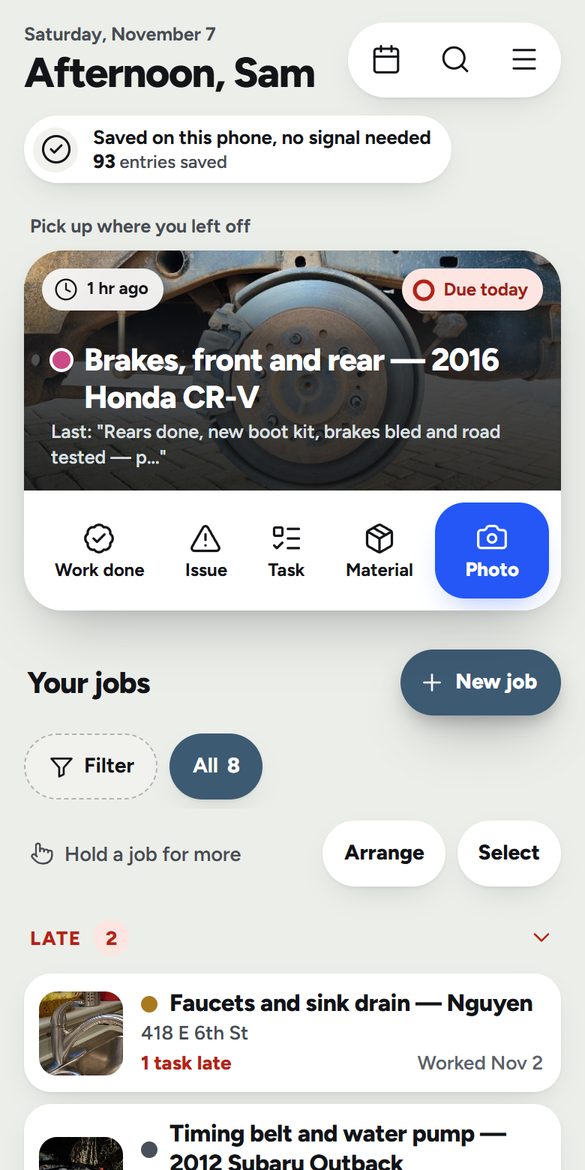
Tap Photo, Material, Task, Issue or Work done. Say it or type it. sytpad files it under the job, by day — right on your phone, with no signal needed to save.
Free while it's being tested. At launch: a 30-day free trial, then US$4.99 a month charged by Google Play until you cancel. No account. Android only.
- Cleaning
- Plumbing
- Electrical
- Automotive
- Building
Your trade · See it work · Price · Questions · Privacy
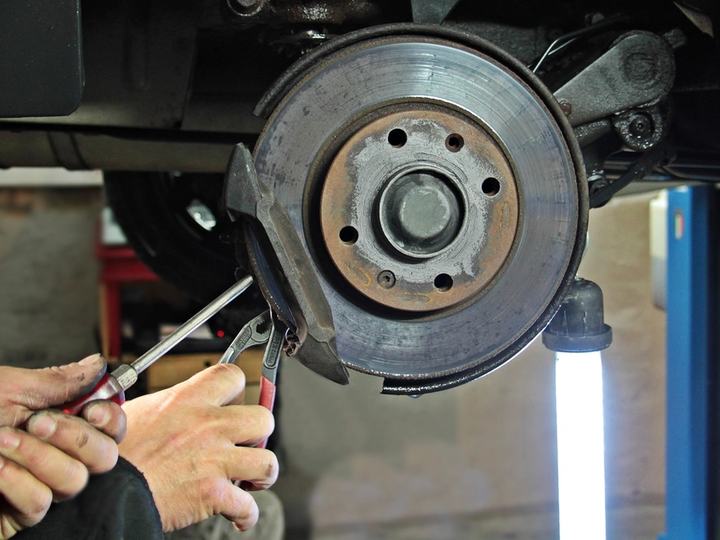
- No more job photos lost in the camera roll.
- No more materials on the back of a receipt.
- No more "did I write that down?"
Built for the trades
Whatever you fix, the same five buttons.
A move-out clean, a water heater, a panel upgrade, a brake job, a deck: each job keeps its photos, tasks, issues and materials in one place. Pick your trades in the app, and the common materials, tasks and issues it offers you match them.
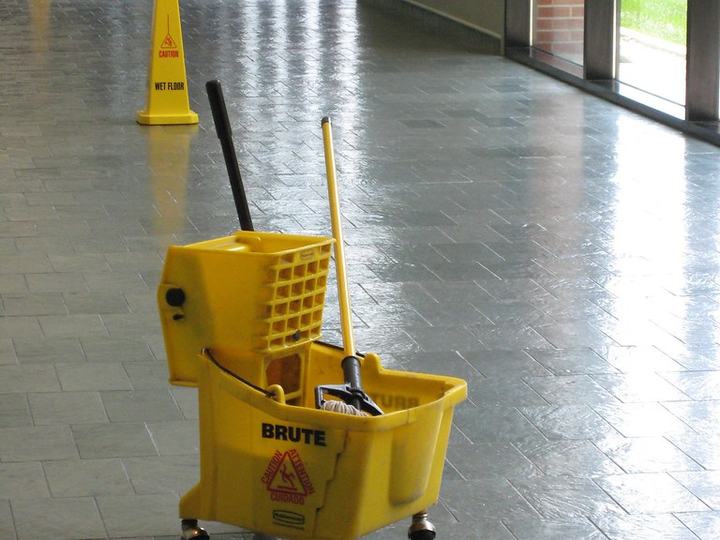
Cleaning
Baked-on grease on the oven door glass — second pass with the scraperIssue · Move-out clean
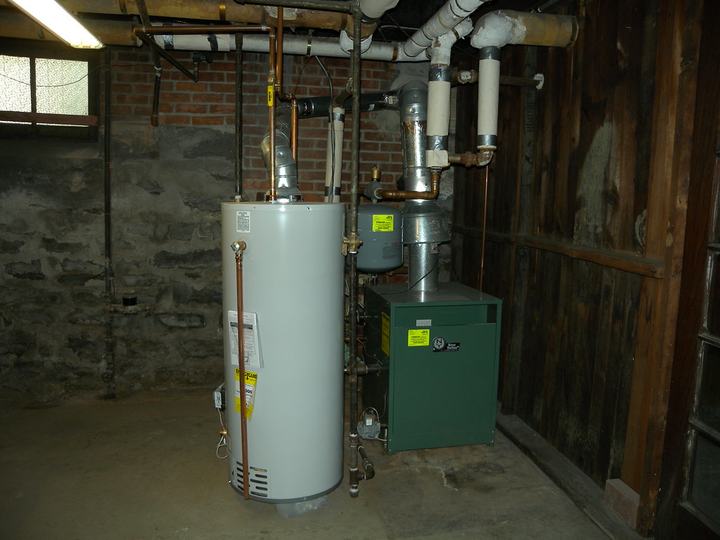
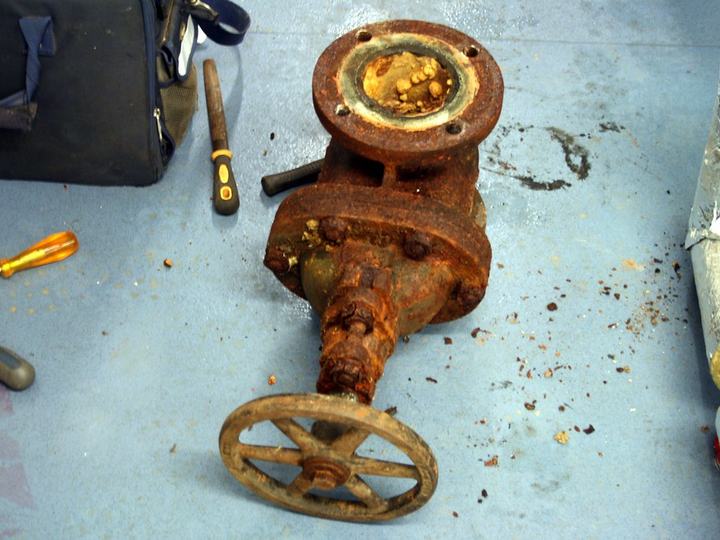
Plumbing
Old 40-gal tank, 2009, wet at the basePhoto, marked Before · Water heater swap
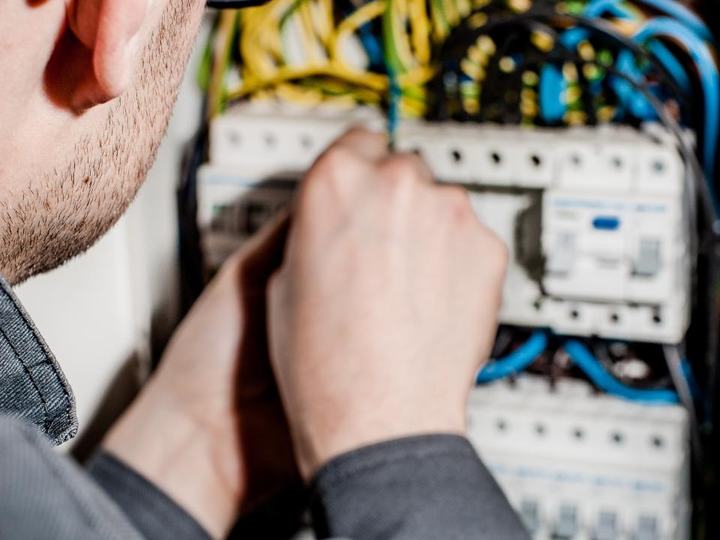
Electrical
Combination AFCI breaker, 15 A · 6 pcs · $353.82Material · 200 A panel upgrade
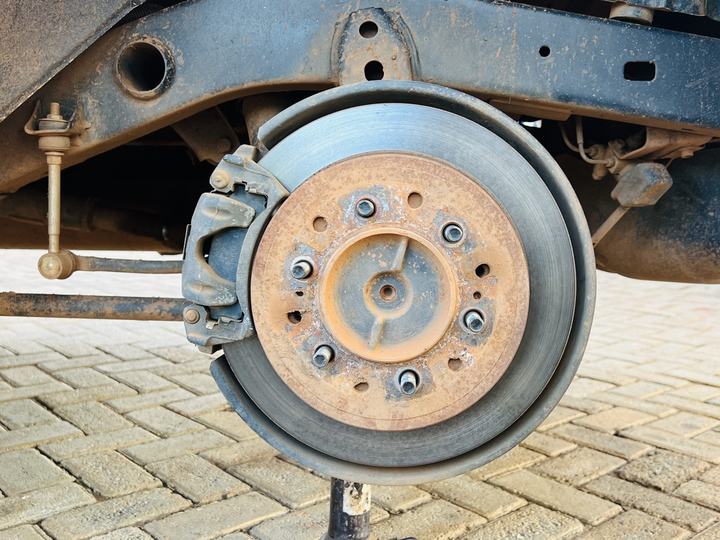
Automotive
Bleed the brakes and road test · today, 3:00pTask · Brakes, front and rear

Building
Trusses set and braced, sheathing goes on tomorrowWork done · Garage addition
And over 30 more.
Painting, roofing, HVAC, landscaping, pressure washing, appliance repair, locksmith and the rest: pick yours, and the lists follow. Not on the list? Type your own materials, and it remembers them.
How it works
Three steps, and it's on the record.
Tap what it is
Five big buttons, right where your thumb is.
- Photo
- Material
- Task
- Issue
- Work done
Say it, or type it
"Six AFCI breakers." "Water stain under the upstairs bath." "Front pads down to two millimetres." Or tap one of the common ones. The panel always shows which job it's going to.
It's filed
Under the job, under today. Tomorrow starts a new day on its own — yesterday moves into the job's history, and any task you haven't ticked stays in sight.
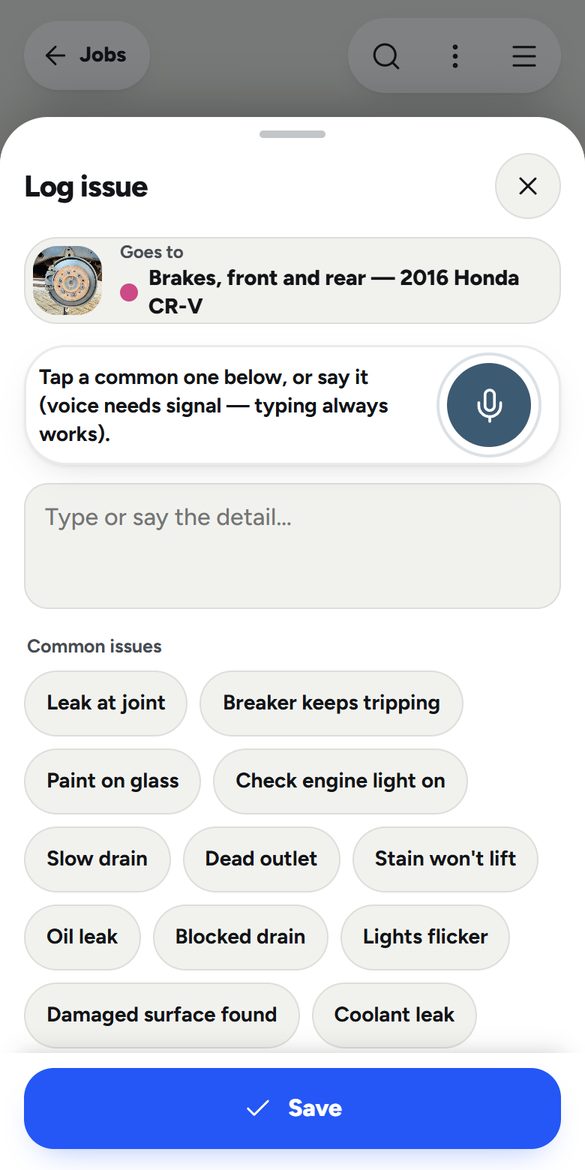
One panel, one thing, done.
Every capture panel names the job at the top, so you can see where a photo is going before you save it. Save, and it stays open for the next one.
A task you haven't ticked stays at the top of the job until you do; give it a due date and it turns red when it's late. Open the app after a couple of hours away and it starts on your job list, so you pick the right site first.
See it work
Watch it, then try it.
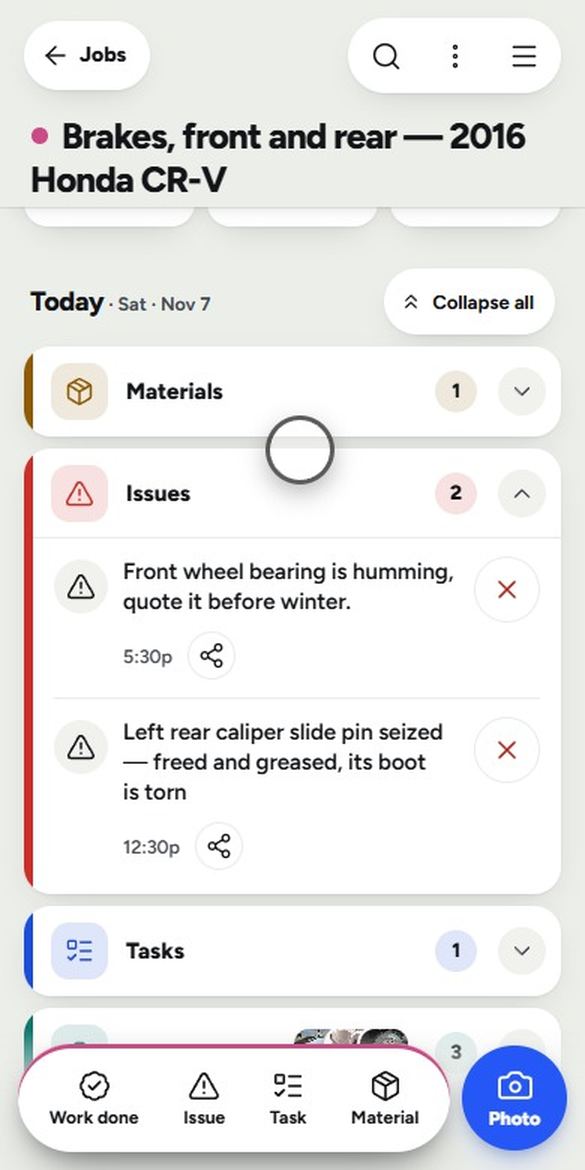
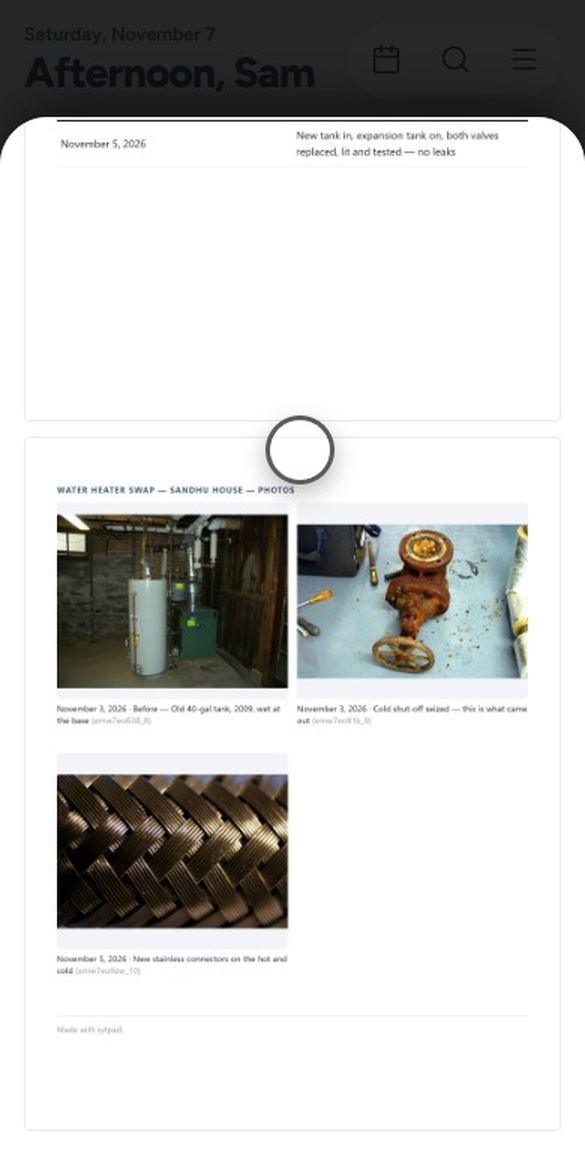
Scroll down. Each one is the app itself doing one job, on sample jobs from four trades with real job photos.
1
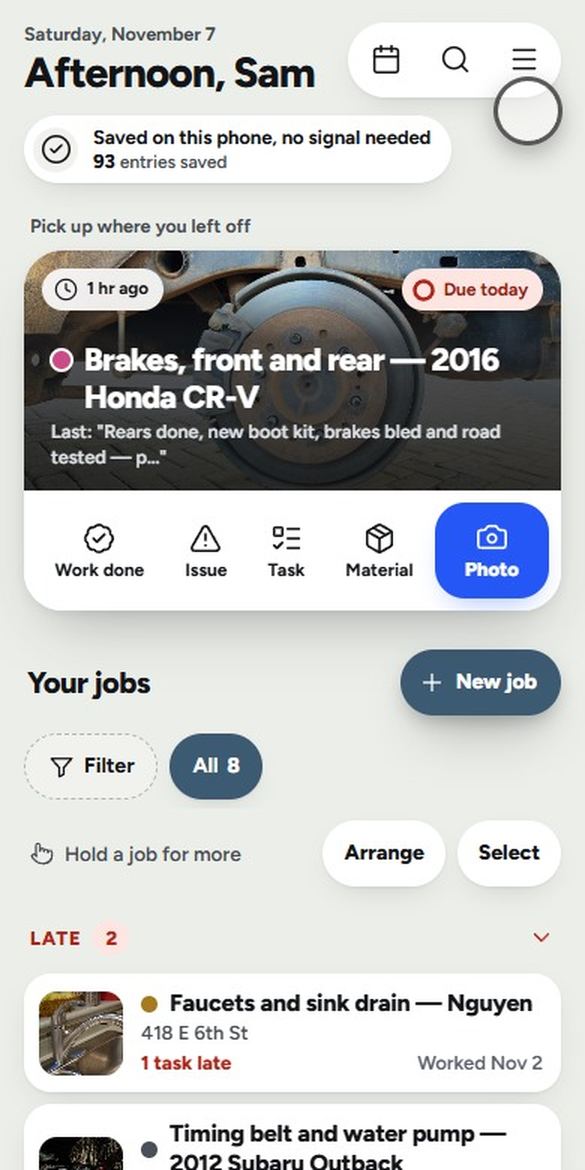
Find your way around
Your last job sits on top. Tap it to open it, scroll down its days, and tap Jobs to go back. Find searches every job and note; Menu holds the rest.
2
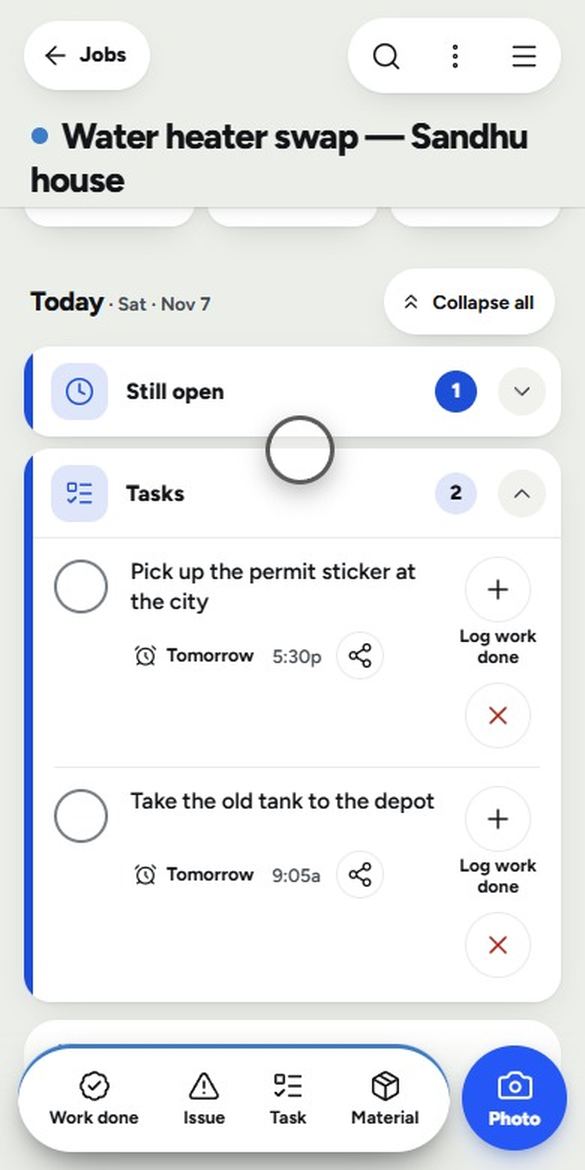
Add a task, with a reminder
Tap Task, type it or say it, and pick when. It stays at the top of the job until you tick it off.
3
Take a photo and mark it up
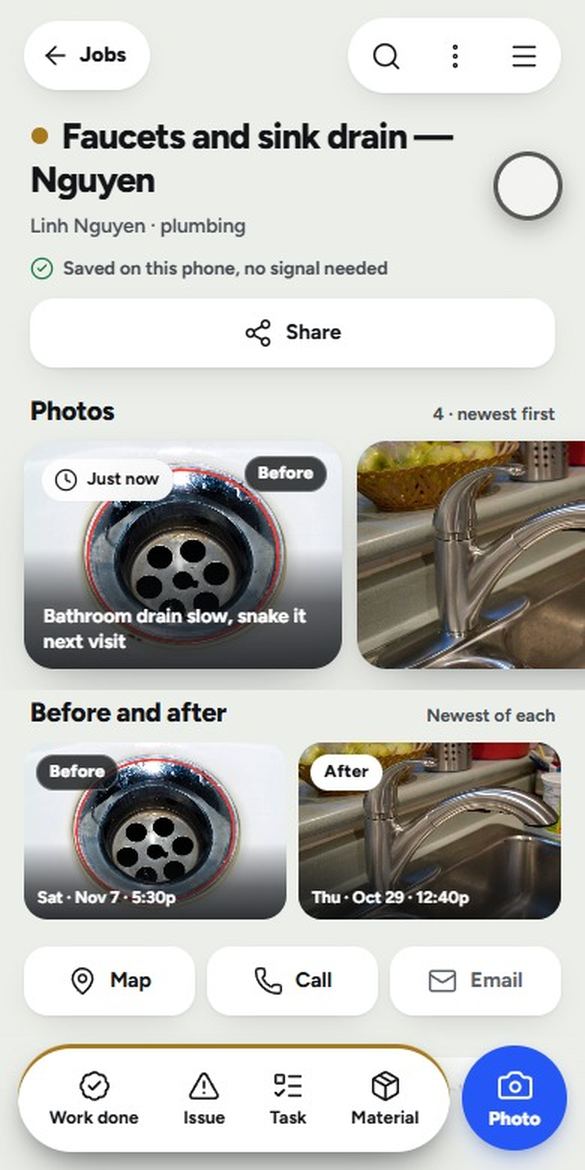
Tap Photo and take it, then circle the problem with your finger. Add a note, mark it Before or After, and save.
4
Log a material
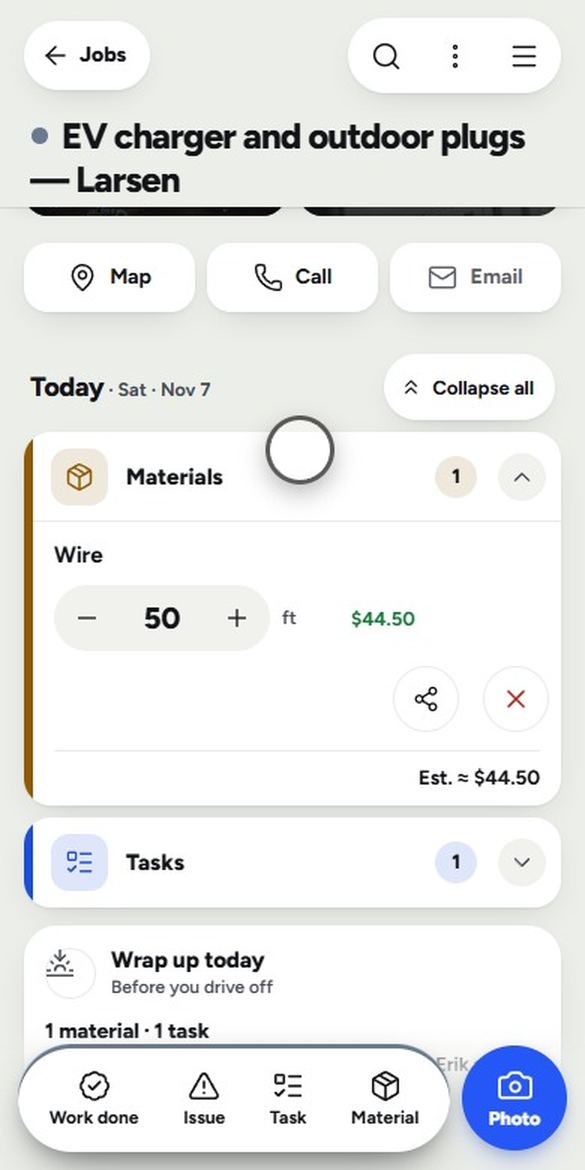
Tap Material, pick it, and set how many and the price. It works out the cost for you.
5
Say it instead of typing
Tap the mic and talk. Your words land in the box, so check them and save. Voice needs signal; typing always works.
6
Make a report for your bookkeeper
Menu, then Records & backup, then Make a report. Pick the job and the dates, and look through the PDF right on the phone.
What it does
Everything the job needs. Nothing it doesn't.
Saves with no signal
Basements, rural sites, steel buildings: everything saves on the phone the moment you tap Save, and after you've opened it once with signal, the app opens with none at all.Voice needs signal on most phones; typing always works. If the phone is ever too full to save, the app says so in red instead of pretending.
Mark up a photo
Snap it, then circle the crack or arrow the bad joint with your finger, in red, yellow, blue or white. Add a note. It's filed with the job.
Estimates and agreements
Fill-in templates with your logo and your signature, quantity times price, tax and total. Save them as a PDF to send the client.Templates, not legal advice — you set the numbers and the terms.
Find anything
One search across every job, client, photo note, task, material and document. "Valve" finds the ball valves you bought and the day you replaced them. Tap it and you're there.
Export a job
The whole job as a spreadsheet that opens in Excel or Google Sheets, or a printable summary with photos, by day — the record you hand over if there's ever a dispute.
Receipts and reports
Snap the store receipt and it's filed under the job. When the books are due, send your bookkeeper one PDF report, or save a spreadsheet that opens in Excel or Google Sheets.Every file you make is yours to keep.
A backup you can save or send
Your notes live on this phone. Save a full copy before you change phones. It's one file with every job, note and photo: send it to your own email or Drive, and restore it on a new phone.The app can't check where your phone kept the file, so keep a copy somewhere safe.
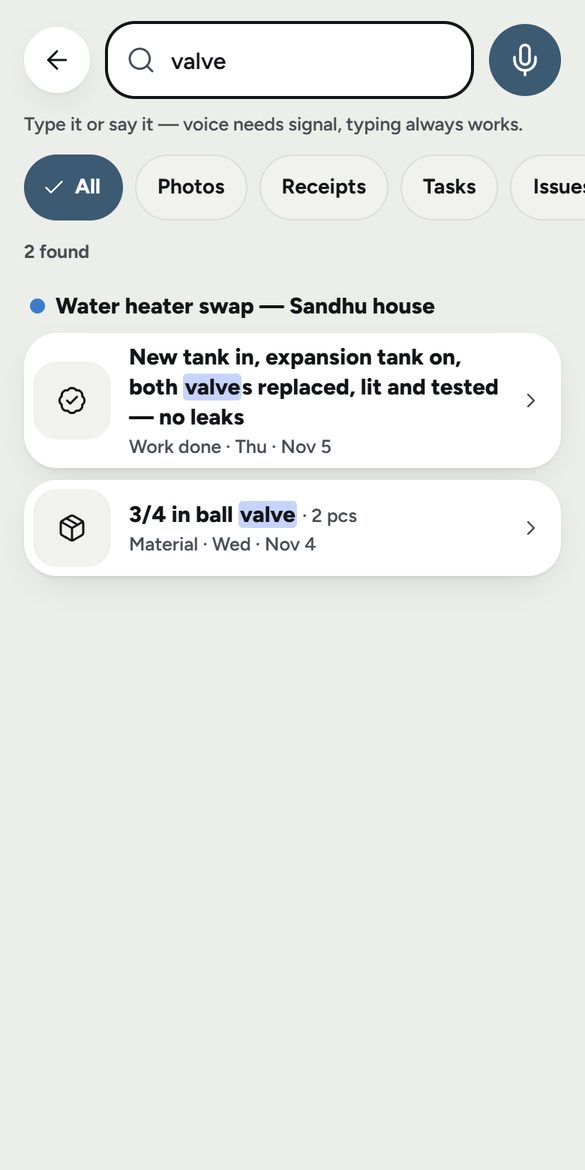
"Where's that photo from three weeks ago?"
Type a word or say it. Results come back grouped by job, with the word marked. Narrow it to photos, tasks, issues, materials or documents with one tap.
Your jobs sit under Late, Due this week, Later and No finish date, so what needs you is on top. Give each job a colour, and filter for open tasks, open issues or anything late.
What it leaves out
Your notes stay on your phone.
- No account
- No sign-up
- No syncing
- No lock-in
- No ads
- No tracking
The honest part about voice. When you tap the mic, your phone's speech service turns what you say into text. On most phones that's Google, so the sound goes to Google to do it. sytpad keeps only the text, on your phone. Typing skips this entirely.
The buttons that hand things on. Map sends the job's address to Google Maps. Add to Google Calendar and a task's reminder button send the task to Google Calendar, with the job's name and address when the calendar entry shows them. Call, Email, printing, sending a backup and sharing an entry or a job go where you send them. None of your notes leave unless you tap. The privacy policy lists all of it.
Who it's for
One person. One phone.
sytpad is built for the person who is the whole company — the cleaner, the plumber, the electrician, the mobile mechanic, the renovator with three sites on the go.
- It's a notebook, not an office suite: no payroll, no crew clock-in, no invoicing system.
- Nothing syncs between phones, on purpose — that's what keeps it free of accounts and servers. If you run a crew that needs to share notes live, it isn't the right tool yet.
- Android only for now, from Google Play.
What it costs
Free to try. Then US$4.99 a month.
While it's being tested: free. Nobody pays anything during the test, and no one is ever charged without choosing to subscribe in Google Play.
When it opens to everyone on Google Play: start a 30-day free trial with everything unlocked; when the 30 days end, Google Play charges US$4.99, plus tax where it applies, and again every month until you cancel. Google Play asks for a way to pay when you start the trial. Cancel before the 30 days end and you pay nothing. The free trial is for first-time subscribers. The Canadian price, in Canadian dollars, isn't set yet; Google Play shows it before you start.
Paying and cancelling: billed by Google Play, so sytpad never sees your card, and there's still no sytpad account to make. Cancel any time in the Play Store app: tap your picture, then Payments & subscriptions, then Subscriptions, then sytpad, then Cancel subscription. You keep everything you paid for until the end of the period you paid for. Deleting the app does not cancel it.
If you don't subscribe, or stop paying: everything you recorded stays on your phone and stays yours. You can still open it, find things and save a full copy of every note and photo. What you can still add without paying will be written here once that part of the app has been built and tried in Google Play.
If the price ever changes, you'll be told before you pay a new price, with time to cancel.
Run your own business? Once you're paying, sytpad's cost is usually a business expense you can claim at tax time. Keep the receipts Google emails you (they're also in your Google Play order history), and check with your accountant.
Questions
Straight answers.
Does it work with no signal?
Yes for saving, looking back, Find, mark-up, estimates and exports — all of it runs on the phone, once you've opened the app one time with signal. The one thing that needs signal on most phones is turning your voice into text. Typing always works.
What happens to my voice?
When you tap the mic, your phone's speech service turns the sound into text. On most Android phones that service is Google's, and the sound is sent to Google to do it; some phones do it on the phone itself, and the app can't tell which. sytpad keeps only the text, on your phone. If you'd rather nothing goes anywhere, type.
Where do my notes live, and what if I lose my phone?
On your phone. If your phone backs up its apps to your Google account, Android's backup holds a copy of them too, up to 25 MB, which a notebook with many photos can pass. There's no account and no copy on a sytpad server. That's also why a lost phone can mean lost notes unless you've made a backup. The app reminds you to send a backup file to your own email or Drive; with that file you can restore everything on a new phone.
What does it cost?
While it's being tested, it's free. At launch: a 30-day free trial, then US$4.99 a month charged by Google Play until you cancel. Paying, cancelling and what happens if you stop are under What it costs.
Is there an iPhone version?
Not yet. sytpad is on Android, through Google Play. iPhones don't allow the voice feature it relies on inside an installed app.
Does it need Chrome?
The app from Google Play doesn't: its pages are inside it, and your notes are kept in the app. Uninstalling it deletes them, so save a full copy first. The web version at app.sytpad.com works best in Google Chrome. Its notes are kept in that browser on your phone, so don't clear the browser's cookies and site data. Opening app.sytpad.com in another browser opens a separate notebook, empty unless you've used sytpad in that browser before, and voice typing may not work there.
Can my crew use it?
Each person can use it on their own phone, but the notes don't sync between phones. It's built for one person running their own jobs.
How do I get it?
Ask to join the test by email, with the Google (Gmail) address on your Android phone: it's the one shown when you tap your picture in the Play Store app. Once the test opens, you'll get a link by email: open it on your phone, accept the invitation, then install sytpad from Google Play. It won't show up if you search Google Play yet. Open sytpad once with signal after installing; after that it opens with none.
What if sytpad stops one day?
Your notes are on your phone, not on a sytpad server. A full copy (Menu, then Records & backup, then Save a full copy) holds your photos, your PDFs, the report and a spreadsheet, and they open without sytpad. Save one now and then and keep it off the phone, such as on Drive or a computer.
Who makes sytpad?
One independent developer. sytpad@gmail.com is that developer's own inbox.
Found a problem? Have an idea?
Email it: sytpad@gmail.com is the builder's own inbox, not a help desk.
No email app on this computer? Copy the address: sytpad@gmail.com
A screenshot helps: cover client names and addresses first. Please don't send a backup file or a full copy: they hold every job, client and photo.
Try it on your next job.
Send an email with the Google (Gmail) address you use on your Android phone. You'll be added to the test list and, once the test opens, sent the link to install it from Google Play.
Or write to sytpad@gmail.com. Already testing? Report a problem.